Empty is not always a failure
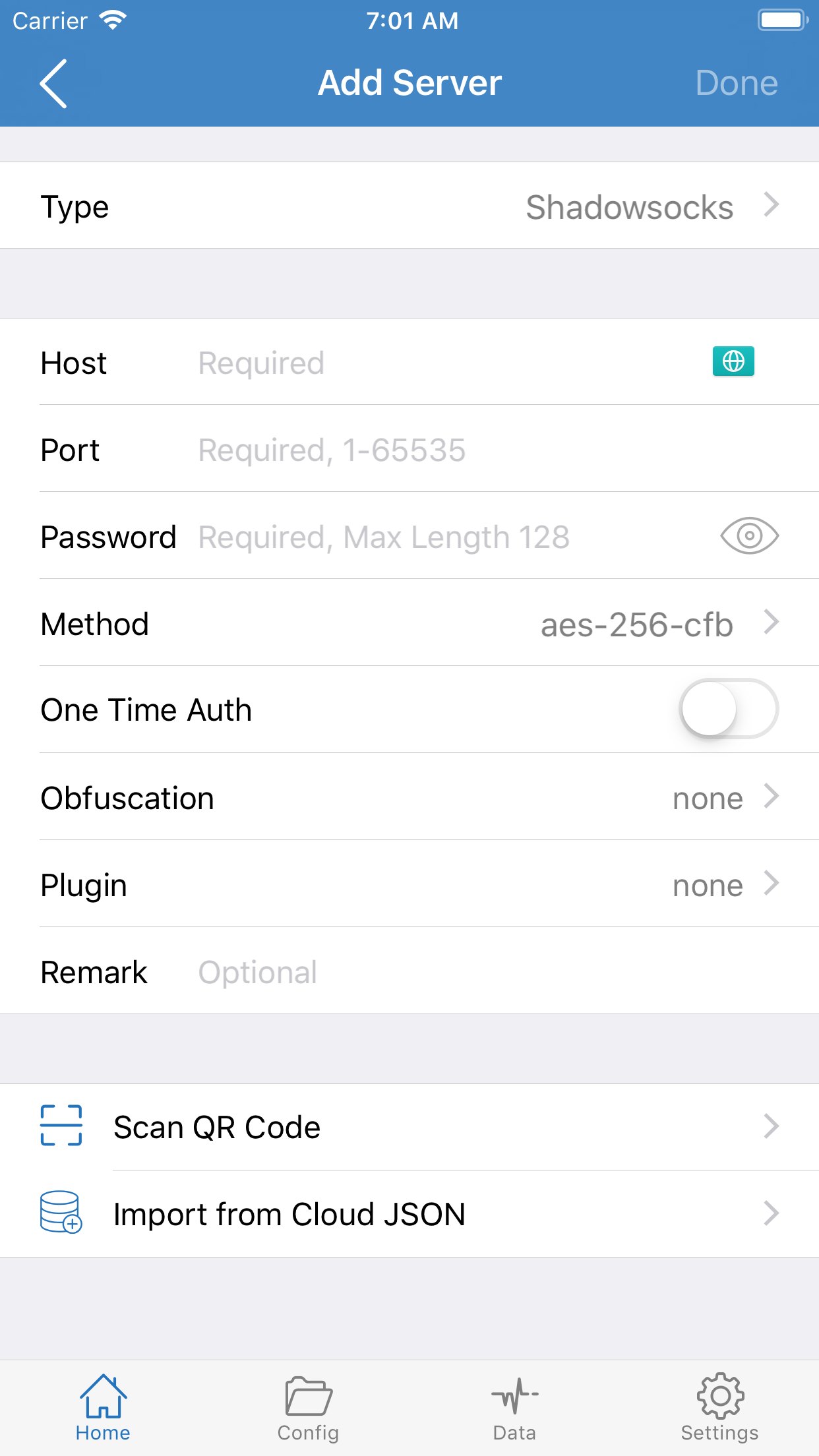
A typical sequence: tap + on the home screen, choose Subscribe, paste the URL, save, then look for nodes immediately. The list is still empty, so the link, the app, or the purchase starts to look wrong.
In Shadowrocket, a subscription URL is not a node. It is only an address that later downloads a server list. Save does one thing: store that URL on the device. It does not fetch the remote list or expand it into tappable servers at the same moment.
So an empty home screen right after save is expected, not a failed import. The action that actually pulls the list is Update. Until you have tapped Update, there are no local nodes to show.
What save does vs what update does
Save: write a subscription record. You will see its name or URL in the subscription list, but that record still has no server entries.
Update: the client requests that URL on the current network, parses the response, and turns the servers into nodes you can ping, select, and connect. After a successful update, region or line names appear on the home screen (or in that subscription’s detail).
Think of a bookmark versus opening the page. Save stores the bookmark; Update actually opens the address and reads the content. Having the bookmark does not mean the content is on the phone.
Some subscription hosts also require that your current network can reach them. If this network cannot open the URL, Update errors or spins, and the list stays empty. That is separate from whether save worked: a successful save only means the address was stored.
The right order
For a first import, follow this order so you do not loop:
- Confirm the genuine Shadowrocket from the App Store is installed and opens to the home screen. How to get and verify it: download guide.
- Have the full subscription URL ready. Copy the whole string from a password manager or note. Do not drop the scheme, and do not leave trailing spaces or line breaks.
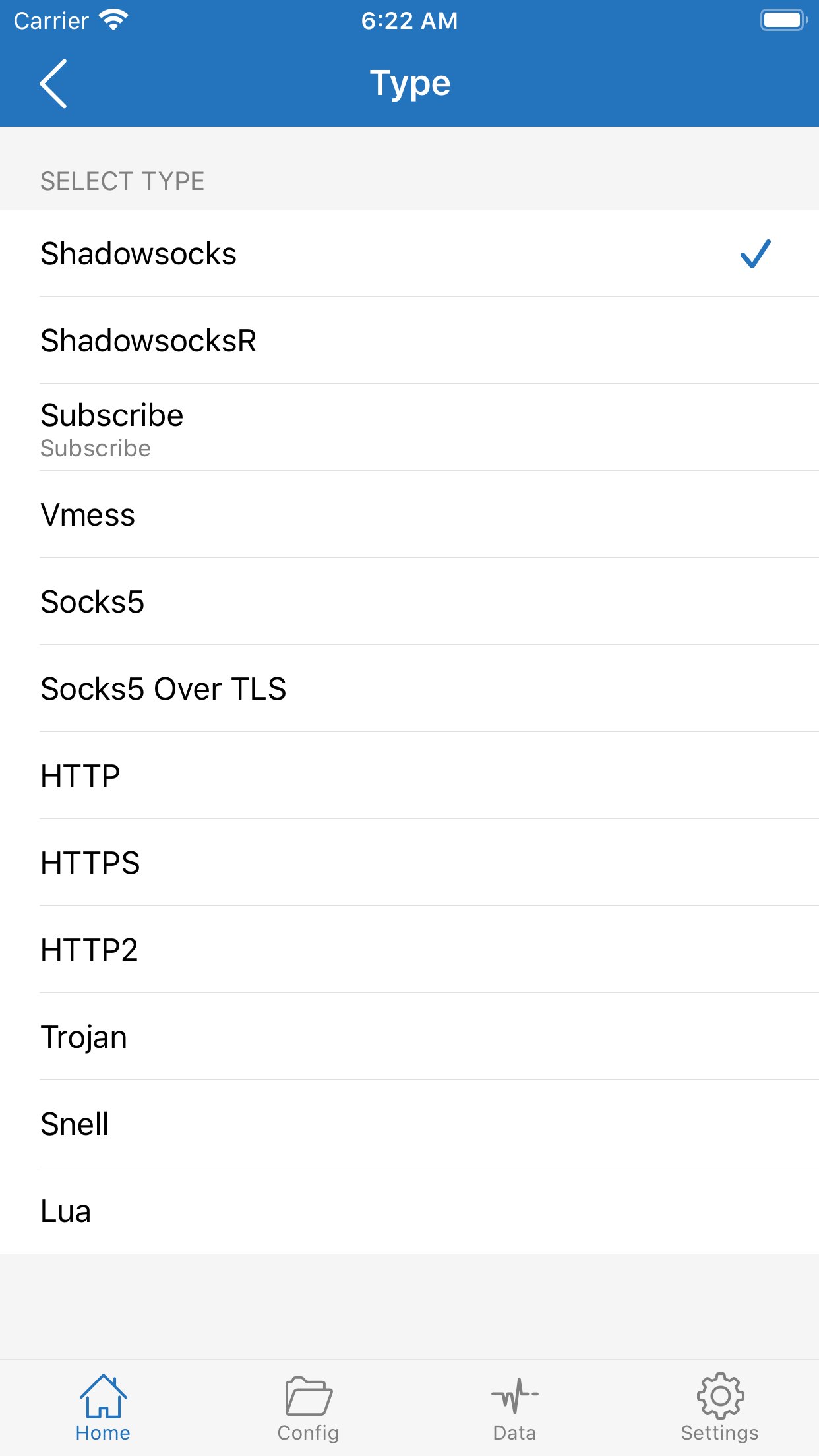
- Home screen +, type Subscribe, paste the URL, rename it if you want, save.
- Open the subscription you just added and tap Update. Wait for success or a clear error. Do not bounce back to the home screen while it is still spinning.
- After Update succeeds, go back to the home screen, pick a node, and turn the connection switch on. iOS will ask to add a VPN configuration. Allow it.
Tap paths and labels follow the version on your phone. The full flow is in the import section of the tutorial and subscription management. This site does not provide subscription URLs or sell servers.
What to check when Update fails
If Update still leaves the list empty, or shows an error, work through the items below. It is faster than deleting and re-adding over and over.
The URL itself. Leading or trailing spaces, a missing https://, copying only half the string, or invisible characters from a chat app will make the request miss. Paste the URL into Notes, confirm it is complete, then copy it back into the app.
Whether this network can open the URL. Some subscription hosts have to be reachable first. A work or campus network, or an already-broken proxy, can make Update fail. Turn Shadowrocket’s connection switch off and try the address in Safari (opening it does not mean the body is readable, but it shows the path is not dead).
Whether the subscription is already dead. If the provider changed the address, the account expired, or the quota ran out, the old link fails Update or returns an empty list. Tapping Update is not enough: delete the old subscription and add the new URL. Leaving the old record only keeps failing.
Looking in the wrong place. Nodes sometimes appear in that subscription’s detail, not in the group you expected. Open the subscription you just saved, confirm servers are inside it, then return to the home screen.
Other reasons the list stays empty
If Update already succeeded and the home screen is still empty, check these:
- If routing under the switch is Direct, proxy is idle. That is not the same as “no nodes,” but it is easy to read as a failed import.
- A filter or group is hiding the nodes you just imported. Clear the filter, or open the matching subscription.
- The app on the phone is not genuine Shadowrocket. Lookalike free apps have different screens, so Subscribe and Update do not line up. Use App Store product page id932747118.
- The first launch never got network permission, so the Update request cannot leave the device. In Settings, confirm the app may use Wi-Fi and cellular.
If the error mentions timeout, certificates, or failed lookup, send that text to the subscription provider. It is more useful than tapping Update again. The client can only tell you this request failed; it cannot repair the remote list.
After a successful add
Region or line names in the list mean this import is done. Next: pick a node, check latency, turn the switch on. If the switch is on and the target site still fails, look at rules and traffic instead of deleting the subscription: rule mode vs global, how to read Direct / Proxy in Data, and connection troubleshooting.
Keep the subscription URL in a password manager as well. When you change phones, reinstall, or the link dies, the record inside the app is not a backup. Moving devices: will nodes and rules survive a new iPhone.
Names in the list do not mean that line works. The list is whatever the remote returned at that moment, including expired, overloaded, or blocked entries. Check latency first, then open a site that actually needs the proxy. If the list is there, the switch is on, and the target still fails, the problem is no longer import. Deleting and re-adding only brings back the same empty or dead list.