What a subscription is
The provider packs addresses, ports, and protocols into a list and gives you a URL. The client downloads that list on a schedule. Then names like “Hong Kong” or “Tokyo” appear on the home screen.
A single node (typed by hand or a scanned ss / vmess line) is not a subscription. Subscriptions change; a single node does not grow new servers by itself. Click-by-click from zero: tutorial · import.
How to add one
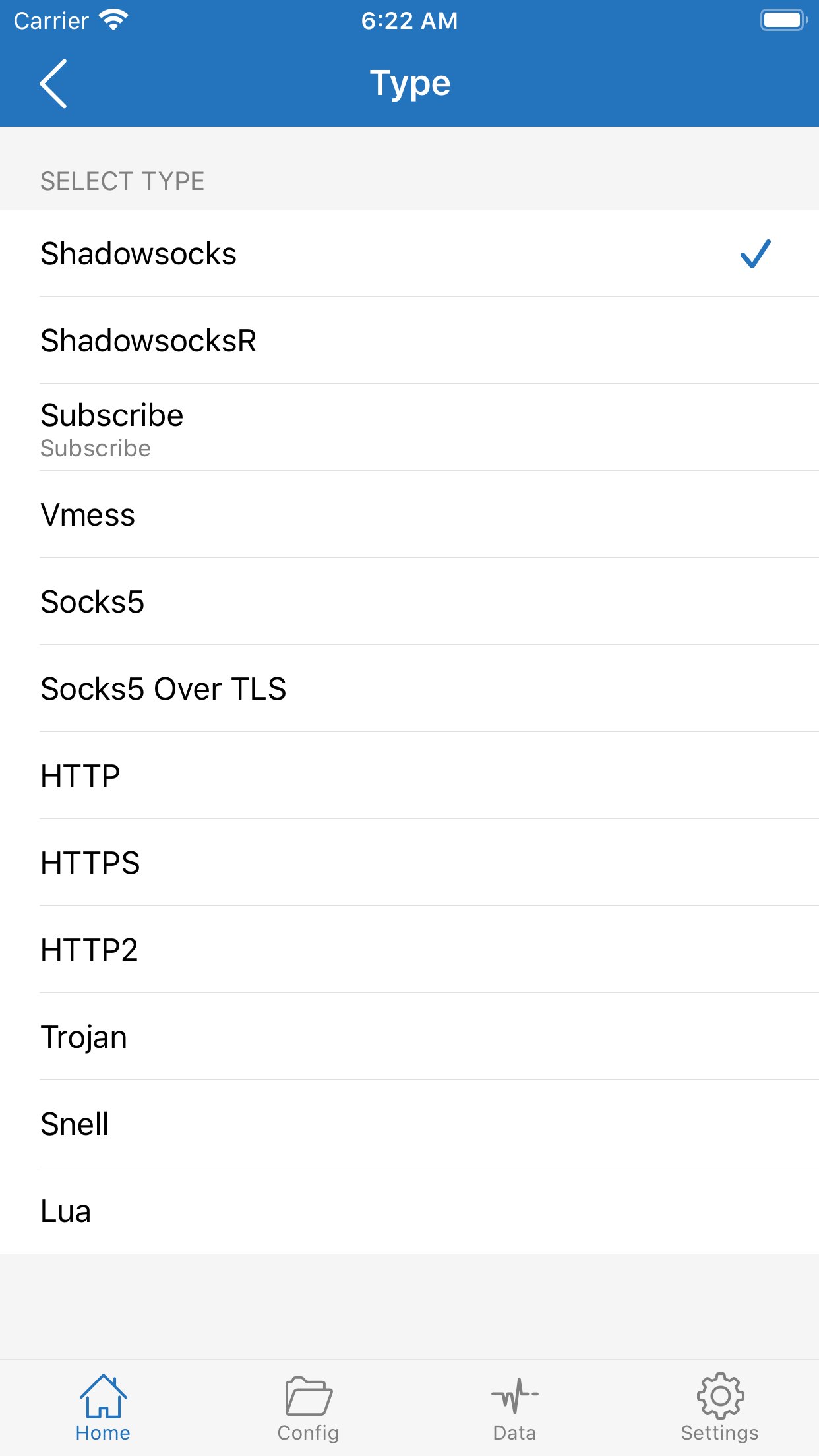
- Home screen +, type Subscribe.
- Paste the whole URL. No leading or trailing spaces or line breaks.
- Use a remark you will recognize, for example “that provider, 2026-03.”
- After save, open that entry and tap Update.
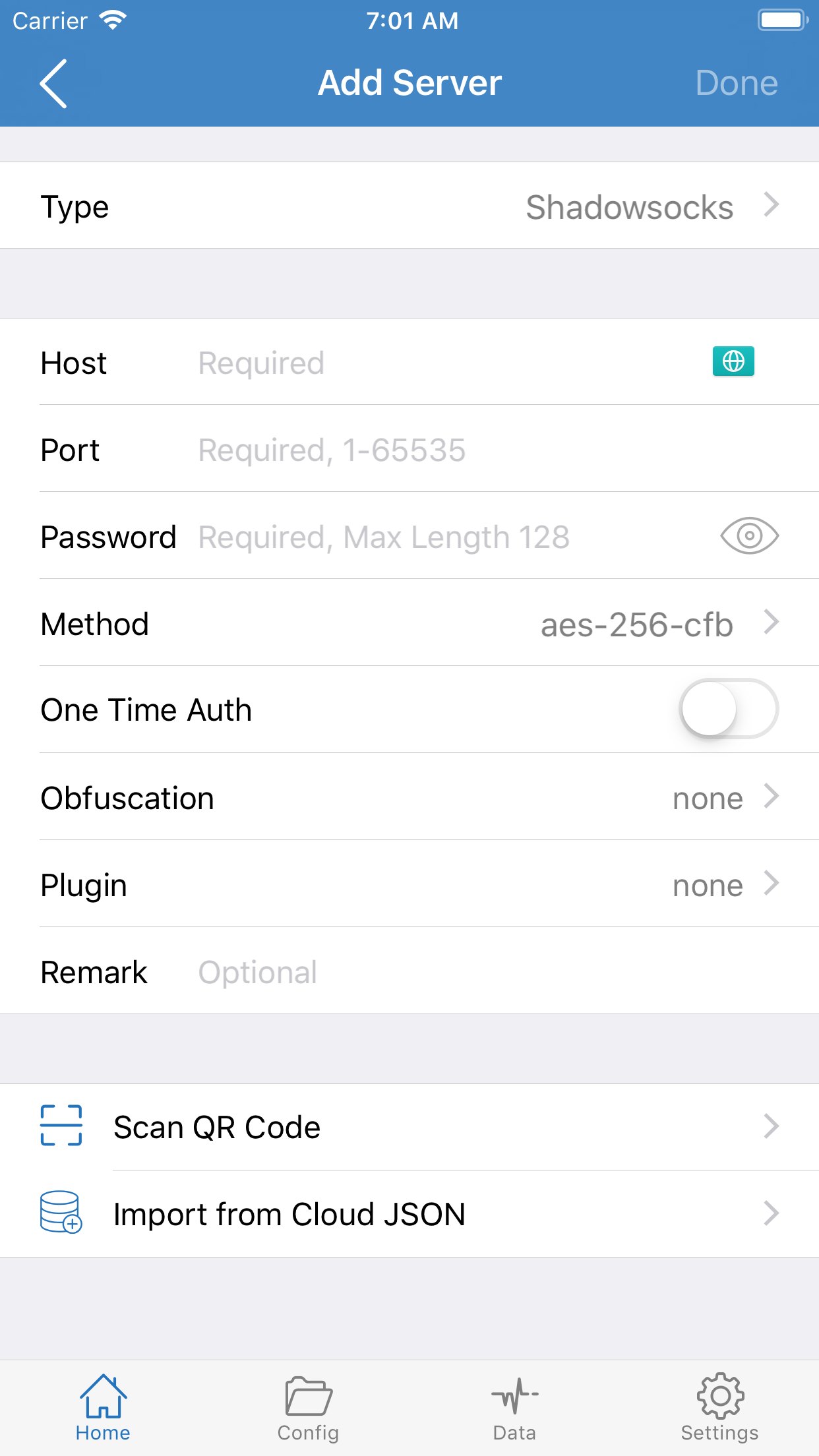
You can also scan the provider’s QR code. After the scan, still check that the type is a subscription, then Update once. The wrong type (a subscription URL entered as a single Shadowsocks node) fails import or will not connect.
What you should see After a successful Update, a column of nodes. On failure, check that the link is complete and that this network can open the URL (some subscription hosts have to be reachable first).
Update and auto-update
Nodes are added and removed, and domains change. Add once and never Update, and in a few weeks everything times out.
Manual: open the subscription → Update. Automatic: in subscription-related settings, turn on “Update when opening the app” or background update. Background update also needs Settings → General → Background App Refresh allowed for Shadowrocket.
Updating too often can get you limited by some providers. A few times a day is usually enough. If Update fails, try another network first. Still failing, the URL may already be dead.
Multiple subscriptions
You can keep more than one. The home screen mixes them or groups by subscription, depending on version. When you pick a node, know which provider it belongs to. Do not leave a retired subscription in the list to pollute latency tests.
Unused subscriptions can stop auto-update or be deleted. Deleting a subscription usually takes its fetched nodes with it. Before you delete, confirm no hand-added nodes you still need are caught in it.
Expiry and replacing a URL
After the provider rotates a token or domain, the old URL fails Update or returns an empty list. Do not only tap Update: delete the old subscription and add the new URL.
An expired plan looks like: Update still works, but every node times out; or Update errors outright. That is on the line side. Changing apps, reinstalling, or toggling VPN permission will not fix it.
If a connection fails and Update itself is failing, fix the subscription on this page first, then go to troubleshooting.
Next is pick a node and turn the switch on. See the tutorial.